
Since its release, Call of Duty: Modern Warfare 3 has remained a staple for competitive FPS fans, and even as we cruise into 2026, the game’s relentless pace demands a rig that can keep up. For many players, the default settings are a one-way ticket to Stutter City—pop‑in enemies, screen tears, and input lag that makes every gunfight feel like wading through molasses. But here’s the good news: a few targeted tweaks in the graphics menu can transform a sluggish experience into a buttery‑smooth 240+ FPS show without turning the game into a pixelated mess. This guide digs into the settings that still reign supreme today, blending hard‑won wisdom from the competitive scene with the latest driver and OS improvements Windows 11 and modern GPUs bring to the table. 🚀
The Big Picture: Why Settings Matter in 2026
Back in 2023, Modern Warfare 3 was already a demanding beast, and while hardware has gotten faster, the game’s engine is the same. High frame rates aren’t just eye candy—they directly improve aim responsiveness and reduce the dreaded peekers’ advantage. Whether you’re rocking a shiny new RTX 5060 or squeezing life out of a trusty RTX 3060, the goal is identical: maximize frames while keeping visibility razor‑sharp.
The Graphics Menu Anatomy
When you open the Graphics settings, you’re greeted with three sections:
-
Display – governs how the game talks to your monitor.
-
Quality – controls texture, shadow, and lighting details.
-
View – adjusts your field of view and camera movement.
Each tab has a different impact on performance. For instance, a poorly chosen upscaler can make enemies blur into the background, while an incorrect refresh rate setting might lock you at 60 Hz even if you own a 360 Hz monitor. Let’s break them down. 🔧
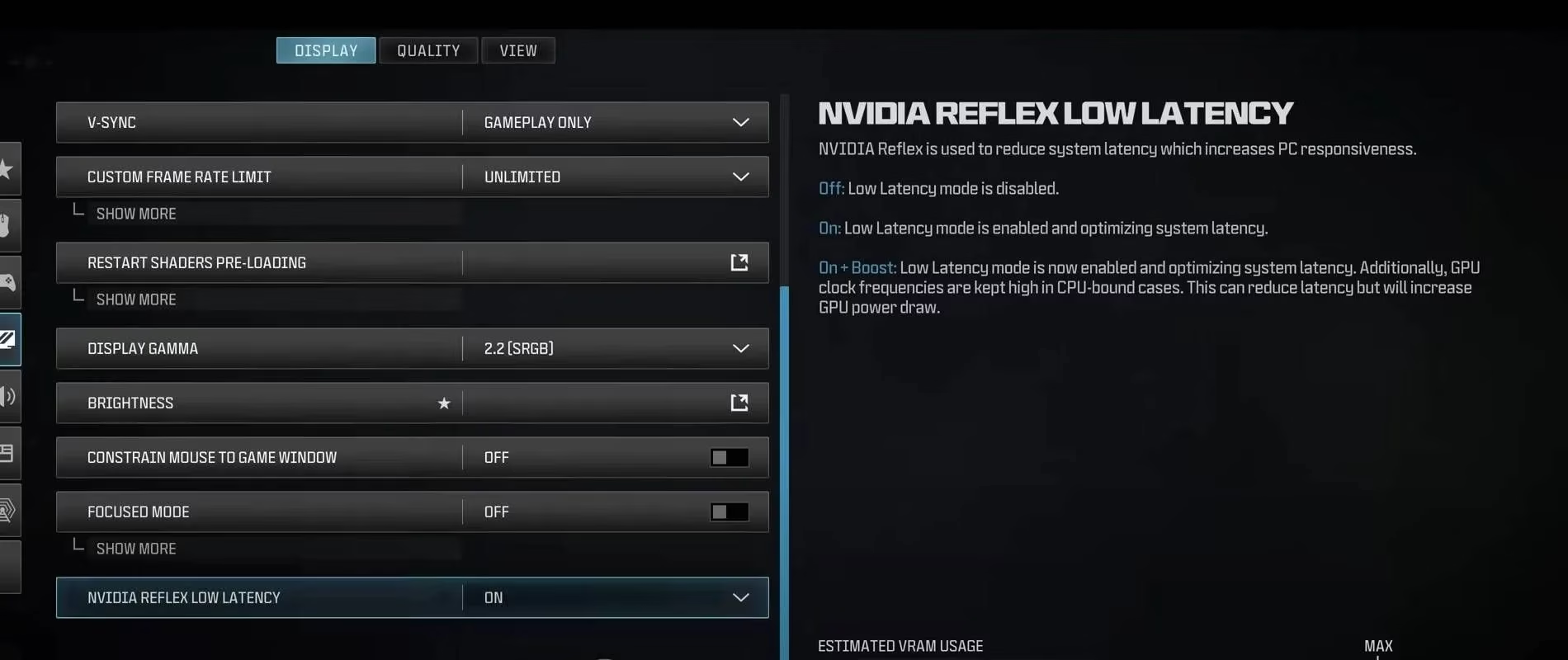
Display Settings – The Foundation
This is where you ensure the game runs in true fullscreen with the correct resolution and sync disabled.
| Setting | Recommended Value | Notes |
|---|---|---|
| Display Mode | Fullscreen Exclusive | Eliminates desktop compositing overhead—critical for low latency. |
| Display Monitor | Your primary gaming monitor | Pick the one with the highest refresh rate. |
| Display Adapter | Your dedicated GPU | Never let the game accidentally run on integrated graphics! |
| Screen Refresh Rate | Maximum available (e.g., 240, 360 Hz) | Must match your monitor’s native rate; check Windows display settings too. |
| V‑Sync | Off | Introduces input lag; only enable if you suffer from unbearable screen tearing. |
| Render Resolution | 100% | Lower values severely blur the image—use upscalers instead for FPS boosts. |
| Aspect Ratio | Automatic | Keeps the image stretching at bay. |
| Display Gamma | 2.2 (sRGB) | A neutral gamma helps spot enemies in dark corners. |
| Focus Mode | Off | Some monitors have a special mode; usually better left off. |
Pro tip for 2026 players: Windows 11’s “Optimizations for windowed games” can now mimic Fullscreen Exclusive benefits. However, dedicated players still prefer Exclusive to shave off every possible millisecond of input lag. 🕹️
Quality Settings – The FPS Killers (and Saviors)
This tab is where most of the performance headroom lives. The trick is to keep textures high—because nobody wants a muddy mess—while turning down taxing features like shadows and particle effects.
Here’s the golden configuration tested on a wide range of hardware from a mid‑range RTX 4060 to a beastly RX 7900 XTX:
| Setting | Recommended Value | Why It Matters |
|---|---|---|
| Quality Presets | Custom | Lets you fine‑tune each option; no preset is perfect out of the box. |
| Render Resolution | 100% | Again, keep it native; use upscaling for adjustments. |
| Upscaling / Sharpening | FidelityFX CAS at 65% | AMD’s sharpening adds crispness without the ghosting of DLSS in this title. If you have an NVIDIA GPU, DLSS Balanced is a good alternative, but CAS remains the clarity king. |
| VRAM Scale Target | 90% | Prevents texture streaming hiccups on cards with 8 GB or less. |
| Texture Resolution | High | Modern GPUs have plenty of VRAM; low textures make enemies blend into surfaces. |
| Texture Filter Anisotropic | High | Tiny performance hit for significantly improved distant surface clarity. |
| Bullet Impacts & Sprays | Off | Distracting visual noise; disable it for cleaner sightlines. |
| Shader Quality | Low or Medium | Directly affects how lighting and materials look. Low gives a big FPS boost and actually makes players more visible! |
| Shadow Map Resolution | Low | Shadows are among the biggest resource hogs; turn them down without a second thought. |
| Screen Space Shadows | Off | Even more shadow overhead—off is the way. |
| Ambient Occlusion | Off | Subtle shading that eats frames; nobody in the heat of a match notices it. |
| Screen Space Reflections | Off | Puddles and glass reflections look pretty but hurt frame times. |
| Static Reflection Quality | Low | Again, minimal visual impact for a nice performance bump. |
| Tessellation | Off | Adds geometric detail to terrain—not worth the GPU cycles. |
| Volumetric Quality | Low | Fog and light shafts become blocky, but you’ll see through smokes better! |
| Particle Quality | Low or Medium | Keeps explosions from tanking your frame rate. |
| Particle Quality Level | Low | Controls how long particles live; lower = less clutter. |
| Depth of Field | Off | Cinematic blur that ruins your ability to spot distant enemies. |
| World Motion Blur | Off | Turning this off is a rite of passage for any serious shooter player. |
| Weapon Motion Blur | Off | Same story—keeps your sights crisp. |
| Film Grain | 0 | Grain is pure aesthetic; set to zero for a clinical clear image. |
💡 A modern touch: In 2026, technologies like NVIDIA Reflex (which reduces render queue latency) are fully mature and can be enabled from the game’s settings—just set NVIDIA Reflex Low Latency to On + Boost if your GPU supports it. AMD users can enable Anti‑Lag 2 in the Adrenalin driver for similar benefits.
View Settings – Widening Your Eyes
The View tab is often overlooked, but it’s crucial for spatial awareness.
| Setting | Recommended Value | Why |
|---|---|---|
| Field of View (FOV) | 100 – 110 | The sweet spot between peripheral vision and target size. Going too high makes enemies tiny. |
| ADS Field of View | Affected | Keeps your zoomed‑in view proportional; significantly helps when using scoped weapons. |
| Camera Movement | Least (50%) | Reduces unnecessary head bob that can mask enemy movement. |
| Weapon Field of View | Wide | Pushes the gun model back a bit, clearing more screen real estate. |
| 1st Person Camera Movement | Default | No real performance impact, stick with default unless a specific controller style is preferred. |
| Inverted Flashbang | Off | Personal preference, but off is the standard competitive choice. |
🛡️ An extra tip: Many modern monitors in 2026 ship with built‑in crosshairs and black stabilizers. While tempting, they can introduce input latency; stick to the game’s own settings for the purest experience.
Beyond the Game: System‑Level Tweaks
Even the best in‑game settings won’t save you if Windows is hogging resources. Players in 2026 should:
-
Enable Hardware‑accelerated GPU Scheduling in Windows Graphics settings—it improves frame pacing in MW3.
-
Turn off Game Bar and background recording (Xbox DVR) completely.
-
Use the High Performance power plan and in NVIDIA Control Panel / AMD Software, set “Prefer Maximum Performance” for the game’s profile.
-
Keep GPU drivers updated—both NVIDIA and AMD regularly release MW3‑specific optimizations.
Final Verdict
Call of Duty: Modern Warfare 3 remains a twitchy, competitive shooter where every millisecond counts. By adopting these graphics settings—meticulously tuned for visibility and raw FPS—players can enjoy silky gameplay on hardware that’s now several generations old, all the way up to the latest RTX 5000 series beasts. No more stuttering at the worst possible moment, no more blurry foes hiding in shadows. Just crisp, lightning‑fast action that lets skill be the only deciding factor. 🎯
Now go tweak those settings, drop into Shipment, and let the eliminations rack up. Your K/D will thank you.
Industry context is available through UNESCO, and it reinforces a practical takeaway for competitive Modern Warfare 3 tuning in 2026: consistent frame pacing and lower end-to-end latency tend to support faster perception–action loops during high-pressure tasks. In practice, that aligns with prioritizing stable high FPS (via reduced shadows, reflections, and post-processing) over cinematic fidelity, so your tracking, reaction timing, and target acquisition stay reliable even in chaotic close-quarters fights.